
ANDROID · PRACTICAL GUIDE
Turn an old Android phone into a desk clock
Give a spare phone a useful place on your desk or bedside table. Start with a clock you can read at a glance, then decide whether you want it to open when you plug in.
This guide uses Nightstand Clock: StandBy Mode by Sync App Studio. You can use the clocks for free; optional purchases unlock customization and extra features. A compatible Android phone, a stable stand and a suitable charging cable are enough to try the basic setup.
Check compatibility on Google Play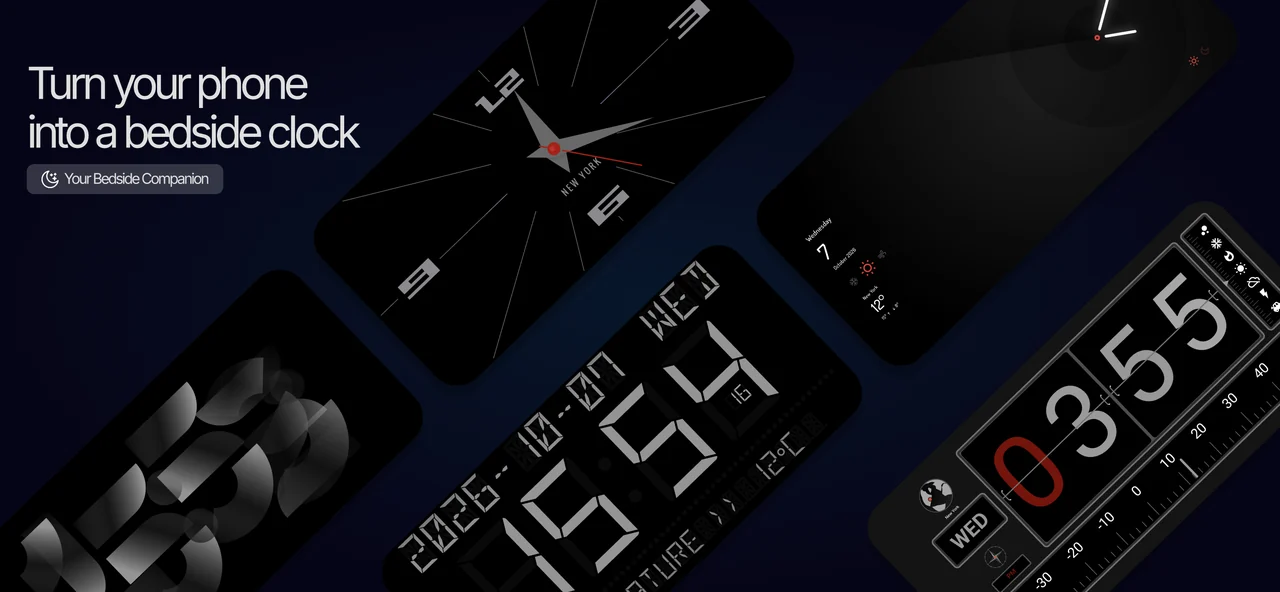
Set up your desk clock
1. Check the phone before you install
Open the Google Play listing on the phone you plan to use. Play will show whether the app is available for that device and account. An older phone is not automatically compatible, so check before buying accessories or an in-app upgrade. Try the free clock display first.
2. Pick a clock you can read from your seat
Install and open Nightstand Clock: StandBy Mode, then browse the clock faces. Choose a simple digital face for quick glances, or an analog face if you prefer hands. Test it from the distance where you will actually use it. A design that looks good close up may feel too small across a desk.
3. Save your main clock
Use Set as Main Clock for the face you want when the app opens. If a different face appears each time, turn off Random clock on launch in settings. That option intentionally chooses another clock instead of always opening your saved main clock.
4. Position the phone and check the screen
Put the phone on a stable surface or stand and adjust brightness with the phone’s controls. The app requests that the display stay awake while it is running. Keep the clock open for the desk-clock view: this is not a replacement for Android’s lock screen, and it does not bypass your screen lock. Screen behavior can still depend on the device and its system settings.
5. Test it before leaving it in place
Check readability, cable placement and brightness in the light where you will use it. If the phone becomes unusually warm, stop and check the device and charger. Avoid leaving a damaged or swollen battery in service. You do not need to buy customization to find out whether the basic clock setup suits you.
Choose what happens when charging
Opening the app yourself is the simplest setup. If your installed version includes Settings → Auto launch, you can optionally use the modes below. The feature is marked Beta and starts off disabled. If that menu is absent, keep opening the clock manually; these optional steps do not apply to every installed version. Choose the behavior you want before enabling it.
| Mode | What it does | Permissions |
|---|---|---|
| When charging | Opens the clock after power is connected, when the screen is on and unlocked. | Display over other apps and notifications. |
| When charging + landscape | Also waits for the phone to be physically held in landscape. | Display over other apps and notifications. |
| Notification only | Shows an Open clock notification so you choose when to open the app. | Notifications; no display-over-other-apps permission needed. |
The app explains permissions before taking you to Android settings. Charging monitoring shows an ongoing notification with controls to manage or turn it off. USB, a wall charger and wireless charging can trigger the charging modes when supported by your phone.
A locked phone stays locked. Automatic opening waits for the screen to be on and unlocked. The Open clock notification can appear while locked, but using it follows the phone’s normal unlock behavior. Keep your usual security settings.
After you leave the clock, reconnect power to start a new charging session. In landscape mode, moving from portrait to landscape can also rearm it. Allow about a second for the conditions to settle. The separate Screen saver settings row opens Android’s screen saver selection; where supported, select Night Clock. Availability and system options vary by device.
What is free, and what needs a purchase?
- Clock display: the clock faces are free to use in their default appearance. Try your desk setup before choosing an upgrade.
- One-clock customization: an optional one-time unlock applies customization to the selected clock, not every clock.
- Lifetime: unlocks customization across clocks, plus sounds and live radio. A single-clock unlock does not include those audio features.
Check the offer and price shown in your app and store before purchasing. This guide does not quote a universal price or promise that an Android purchase transfers to another platform.
If the setup does not behave as expected
The clock does not open when I plug in
First check that Auto launch is enabled and the selected mode matches your phone’s position. The screen must be on and unlocked for automatic opening. Check the permission status on the Auto launch page. Device-specific background restrictions or force-stopping the app can interrupt monitoring; reopen the app and try again. Battery optimization is a recommendation in the app, not a prerequisite for enabling the feature.
I want fewer permissions
Use Notification only if you want a charging reminder without display-over-other-apps access. Or leave Auto launch off and open the clock manually. Neither approach requires giving up your screen lock.
Can I follow this guide on an iPhone?
These charging instructions are for Android. Sync App Studio’s iPhone and iPad app is Mobile Clock Pro: Always On. Check its current App Store listing for supported features; the clock collection and platform behavior may differ. Android auto-launch behavior is not an iOS feature promise.
Start with one clock and one place
Choose a readable face, save it as your main clock and try it where you work or wind down. Add a charging routine only if it makes that daily setup easier.
Try Nightstand Clock on Android