
SYNC APP STUDIO
A clock,
in your style.
Turn your phone into a desk or bedside clock. Choose a look for your workspace or nightstand, with colors and backgrounds that fit your style.
Free to download · Includes in-app purchases
SAME TIME. DIFFERENT FEELING.
A clock for every mood.
A quiet desk. A colorful night.
Choose your look.
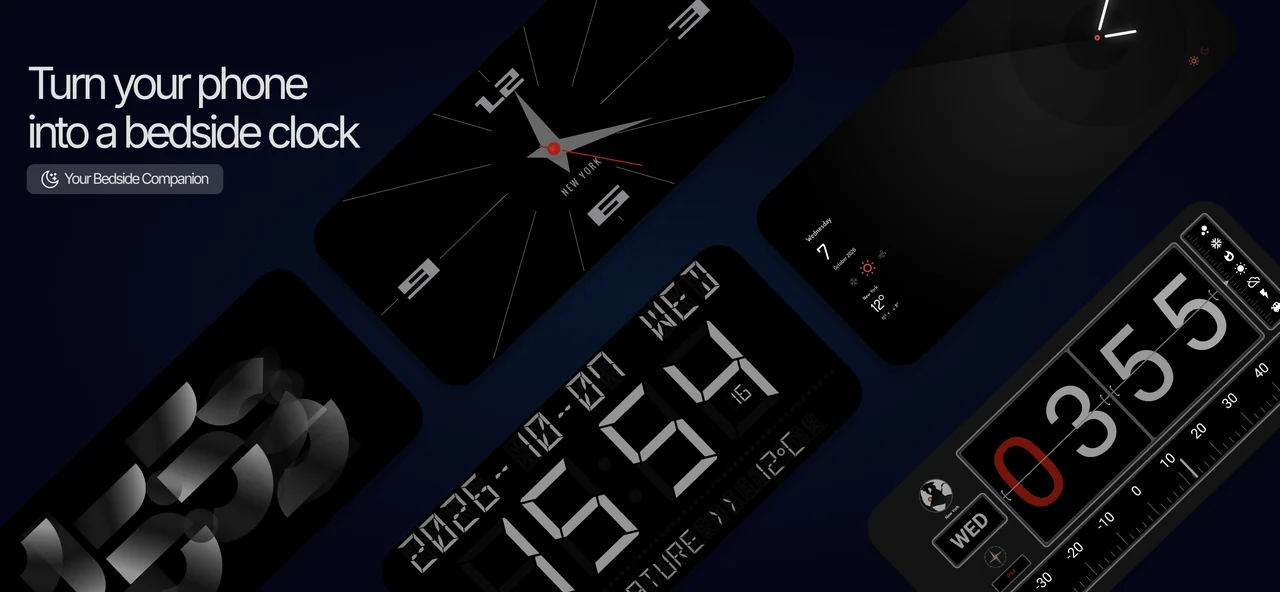
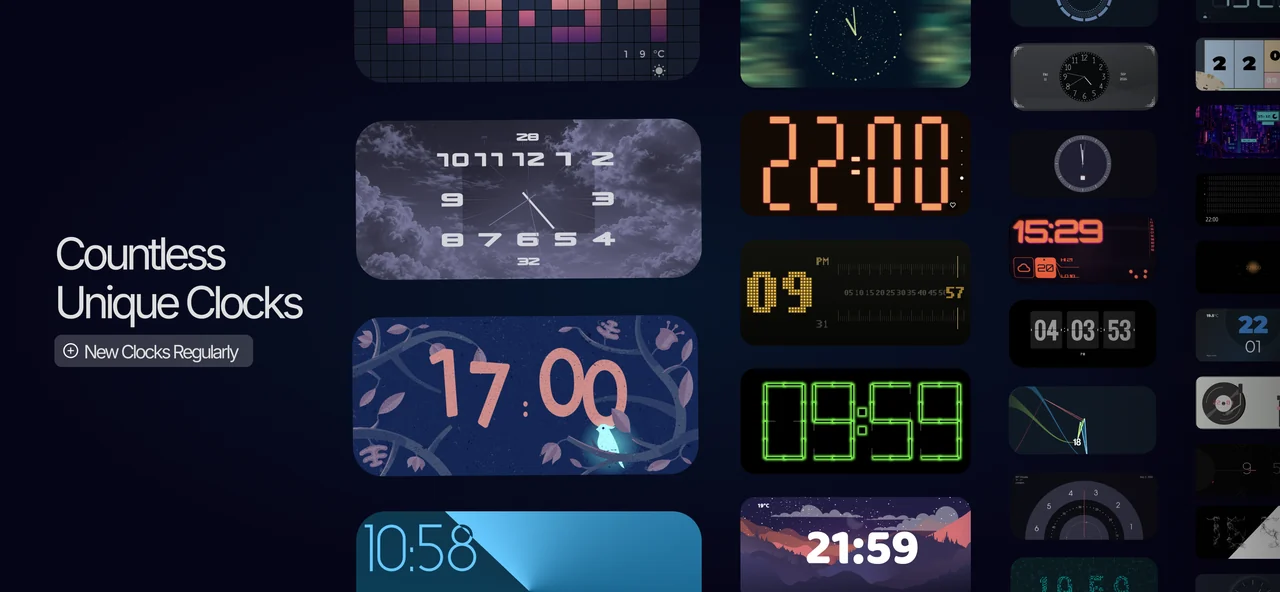
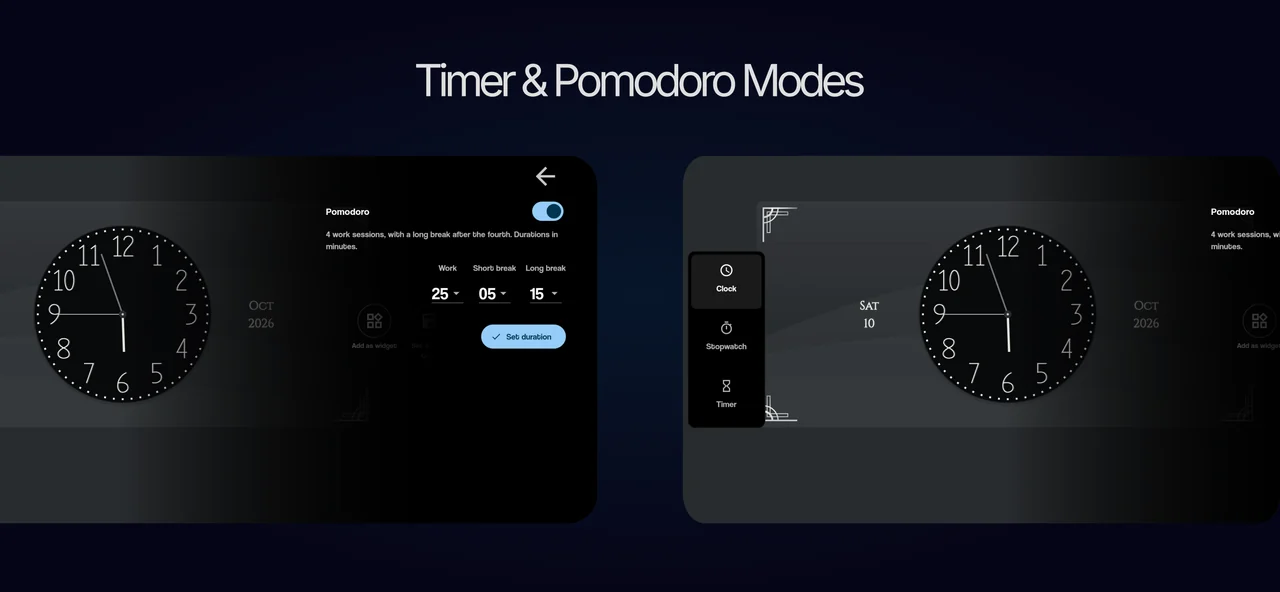
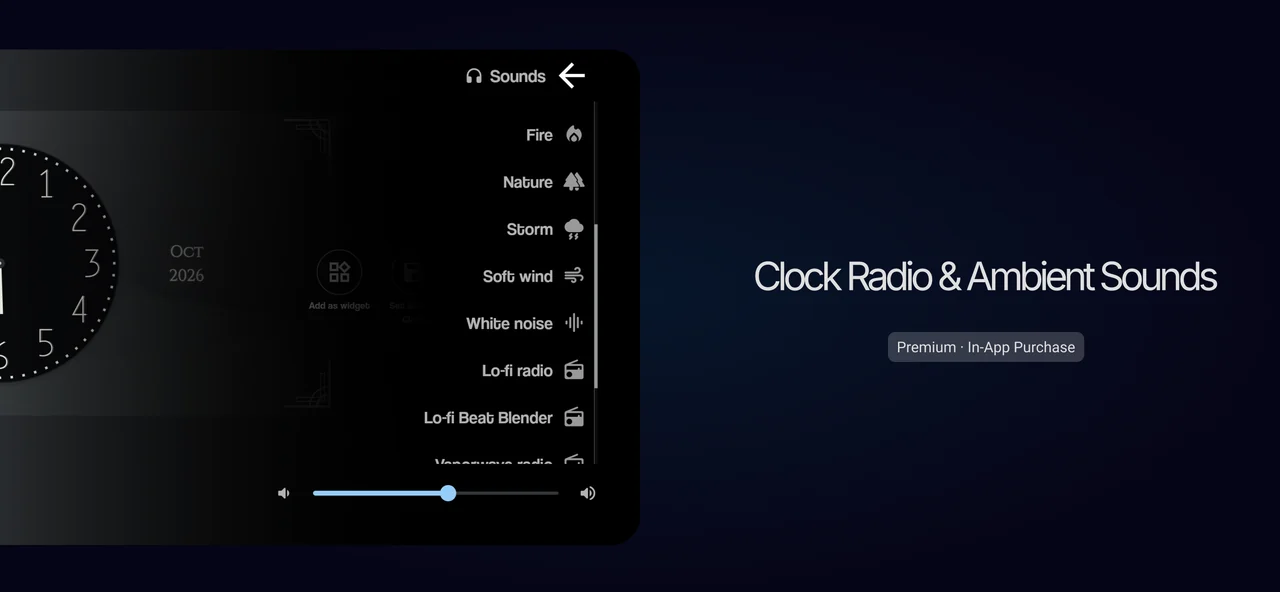
Recent Android app screenshots. The iPhone and iPad collection may differ; check the current App Store listing.
FROM THE DEVELOPER
A new look for your desk. Start with your phone.
I wanted to use my iPhone as a clock display without plugging it in. Instead of buying an expensive accessory for my desk and gaming setup, I wanted to turn a phone I already owned, or an older spare, into a desk clock with different designs and ways to make it my own.
Start with a compatible phone you already have: open the app, choose a clock you can read from your seat, and adjust the options that design offers. Try the setup before buying a separate clock device. Some customization options require an in-app purchase.
Explore 5 guides for your desk, bedside and gaming setup →PART OF YOUR DAY
Give your screen
a new rhythm.
Download. Choose your style. Let time fit in.
JUST A MESSAGE AWAY
Support
Having trouble or have an idea? Write to us.
support@syncappstudio.comWhen describing an issue, include your device model, operating system and app version. You can also attach a screenshot.
Help · Where to start?
- Update the app.
Check the App Store or Google Play for a newer version.
- Reopen and check.
Close and reopen the app. Note which clock you were using and the steps that led to the issue.
- Get in touch.
If the issue continues, email our support team. You can use the same address for purchase questions.
YOUR QUESTIONS
Frequently asked questions
Short questions, clear answers.
Where can I download the app?
On iPhone and iPad, find Mobile Clock Pro: Always On in the App Store. On Android, find Nightstand Clock: StandBy Mode on Google Play.
Is the app free?
The app is free to download and includes in-app purchases. You can see current prices for paid options in the app and your device’s store.
Can I change the clock’s appearance?
Yes. Explore different clock designs and personalize your screen with the colors, fonts and backgrounds offered by your chosen clock. Available settings vary by design.
Are the same clocks available on iOS and Android?
The clock collection and some features may differ by platform and app version. Open the app to see what is available on your device.
How can I get help with a bug or a purchase?
Email support@syncappstudio.com. Include your platform, device model, app version and a short description of the issue. There is no need to send passwords or card details.
Can I suggest a new clock design?
Of course. Send the clock style or feature you would like to see to support@syncappstudio.com.
Can I use an old phone as a desk clock?
A spare phone or tablet can become a desk or bedside clock. Check device compatibility on its store page, open the app and choose a clock style. Place the device on a stable stand where the time is easy to read.
Does the clock stay visible while I use it?
The app can keep the screen awake while the clock is open. Adjust the brightness on your device for your desk or bedside. This is an in-app clock display; available designs and settings differ between Android and iOS versions.
Can I use my iPhone as a desk clock without charging it?
Yes. Mobile Clock Pro can show its clock while the app is open, without connecting a charger. This does not activate Apple’s built-in StandBy mode or replace the lock screen. Keeping the display on uses battery; runtime depends on your device, battery condition and brightness. Check App Store compatibility on an older phone.