
REUSE YOUR PHONE · 02 / 05
Turn an old phone into a desk clock
A phone sitting in a drawer can have a useful place on your desk. Start by making the screen you own readable and convenient, then decide whether the setup needs anything else.
Start with the phone you own
First, check whether the phone can run the app. On the device itself, open the listing for Mobile Clock Pro on iPhone or Nightstand Clock: StandBy Mode on Android. Age alone does not establish compatibility.
Check the screen, battery condition and the space where the phone will sit. If you already have a stand, try that before buying accessories. Do not use a phone with a damaged or swollen battery for this setup.
Put the time within your usual view
Choose a position you can see without closing your main task on the computer. Beside the monitor or toward the back of the desk are useful starting points. Avoid hiding the display behind a notebook, cup or speaker, and keep it out of your mouse area.
An example layout is a centered monitor, keyboard in front and a phone clock to one side of the monitor. If you can read it from your seat and reach it without moving other objects, the position is more likely to work in daily use.
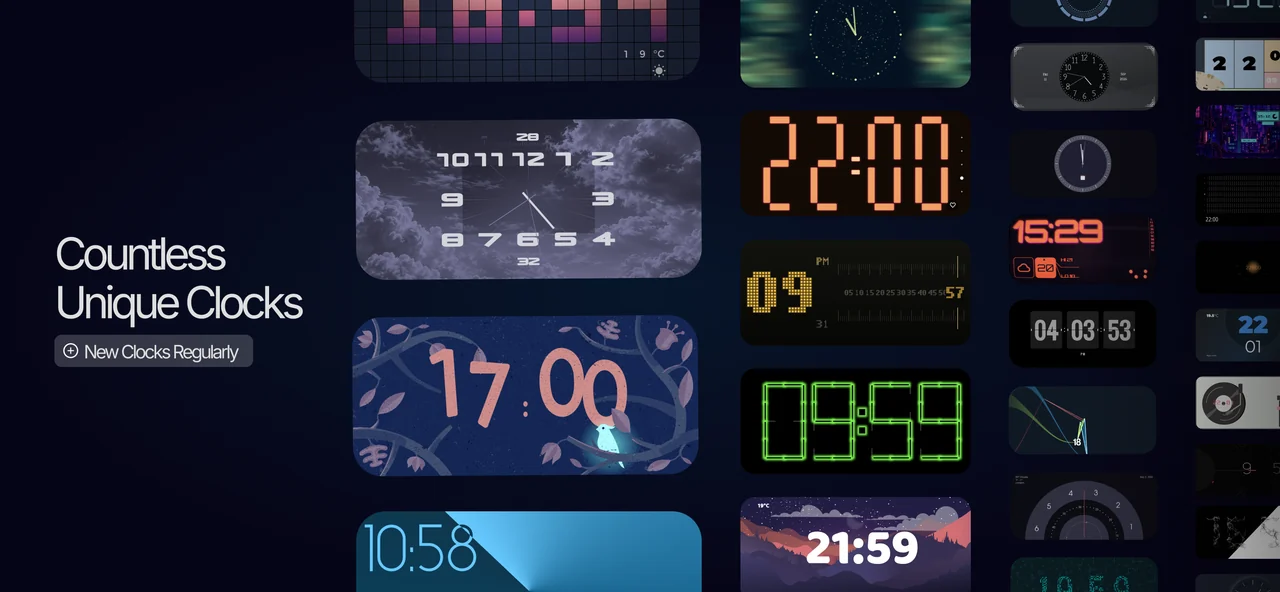
Make it readable before styling it
Begin with a simple face and large numerals. Check it from your seat, then adapt it to the desk’s colors. Try contrasting digits on a dark desk or a restrained background in a lighter setup.
Use the customization controls offered by your chosen design in the Sync App Studio app. Controls differ between faces, platforms and versions; some require an in-app purchase. A design that looks good close up still needs to be readable at the distance where you work.
Keep the daily routine simple
Start by opening the app manually and leaving the clock visible. Where available, save the face as your main clock and turn off random-on-launch if you want the same display each time. This is an open-app display, not a lock-screen replacement.
For Android charging modes and their permission requirements, use the detailed Android setup guide. Those Android options do not establish equivalent behavior on iPhone.
After a work session, ask three questions: could you read the clock easily, did the phone stay securely positioned, and did brightness and battery use suit you? That trial is a useful basis for deciding whether you need a separate clock at all.
This content is prepared by Sync App Studio, the developer of the clock apps. Layout suggestions are examples, not reports of tests on particular devices.